Preparation
Please refer to the Importing section to import charts and skins first.
Song Selection
Tap the screen to enter the song selection menu.The left side shows basic info like Title, Difficulty Range, Source, etc. Tap any song button to select a chart. Currently, the difficulty star rating calculation references osu! Catch the Beat mode. A new algorithm optimized for mobile is under development.
Search & Favorites
Tap the star icon before the song button to Add to Favorites. The top header provides basic Search and Sort functions.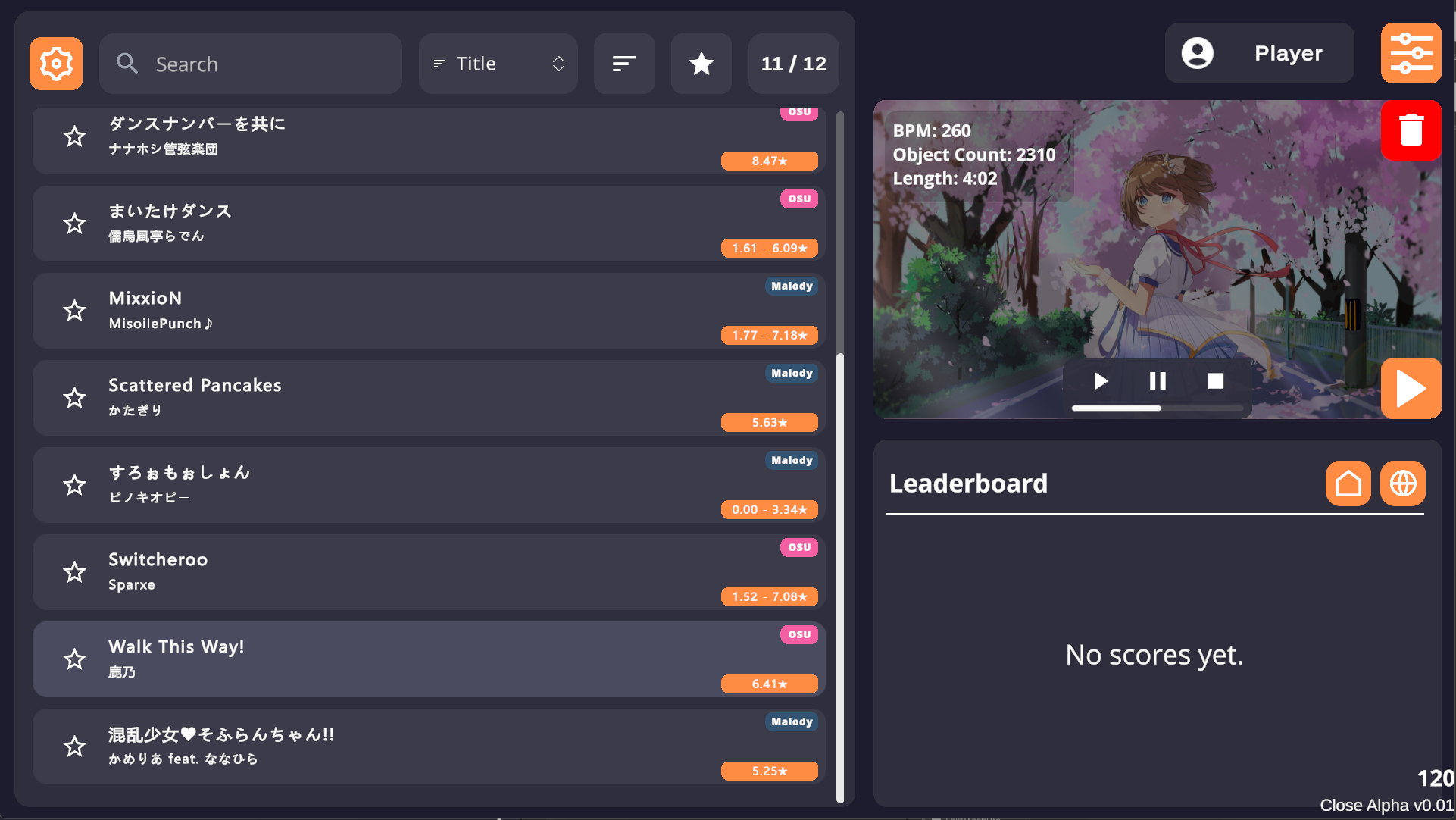
Mod Settings
After selecting a chart, tap the orange Start button on the right to open the Mod settings menu, where you can customize various settings.
Start Game
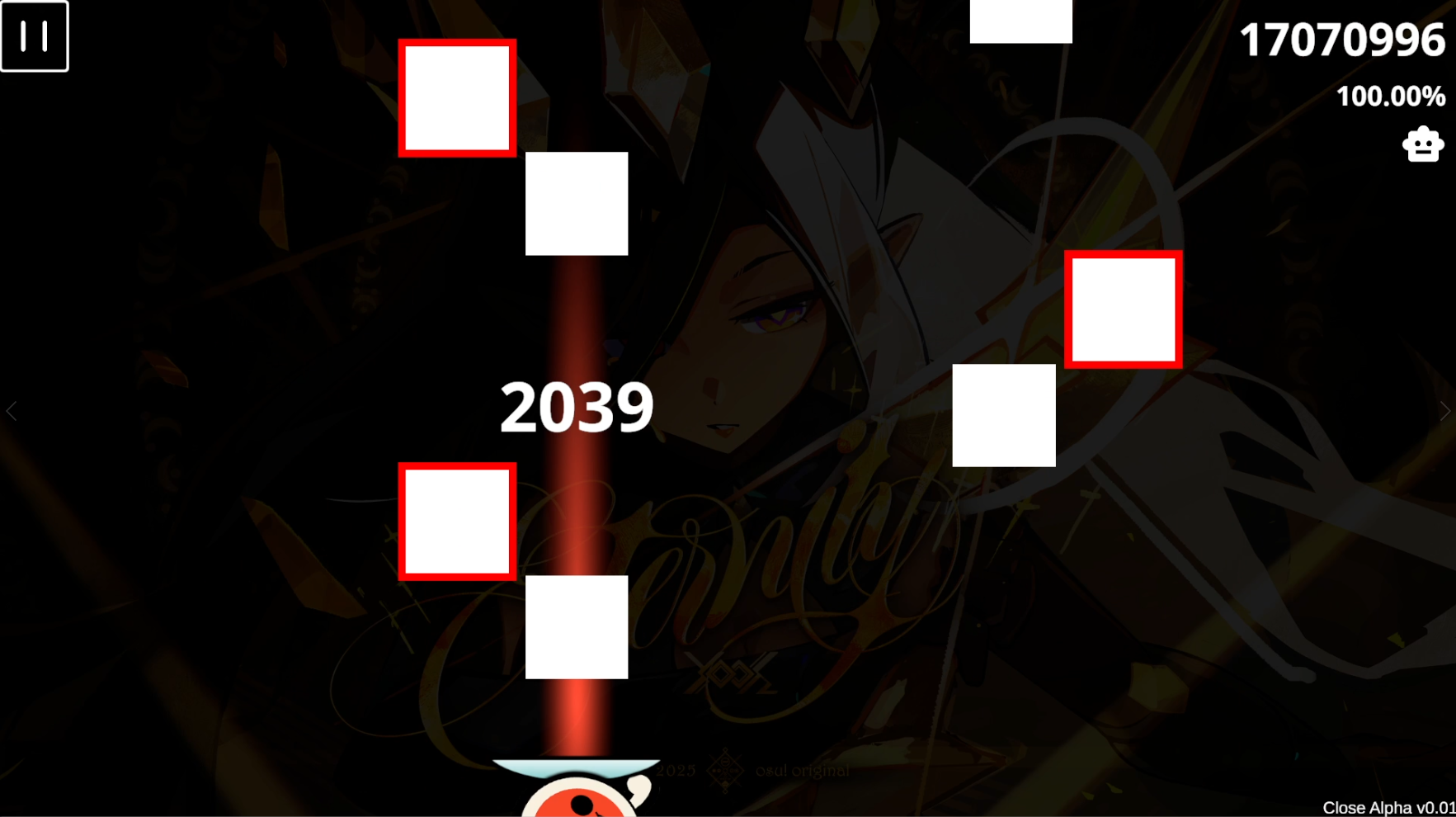
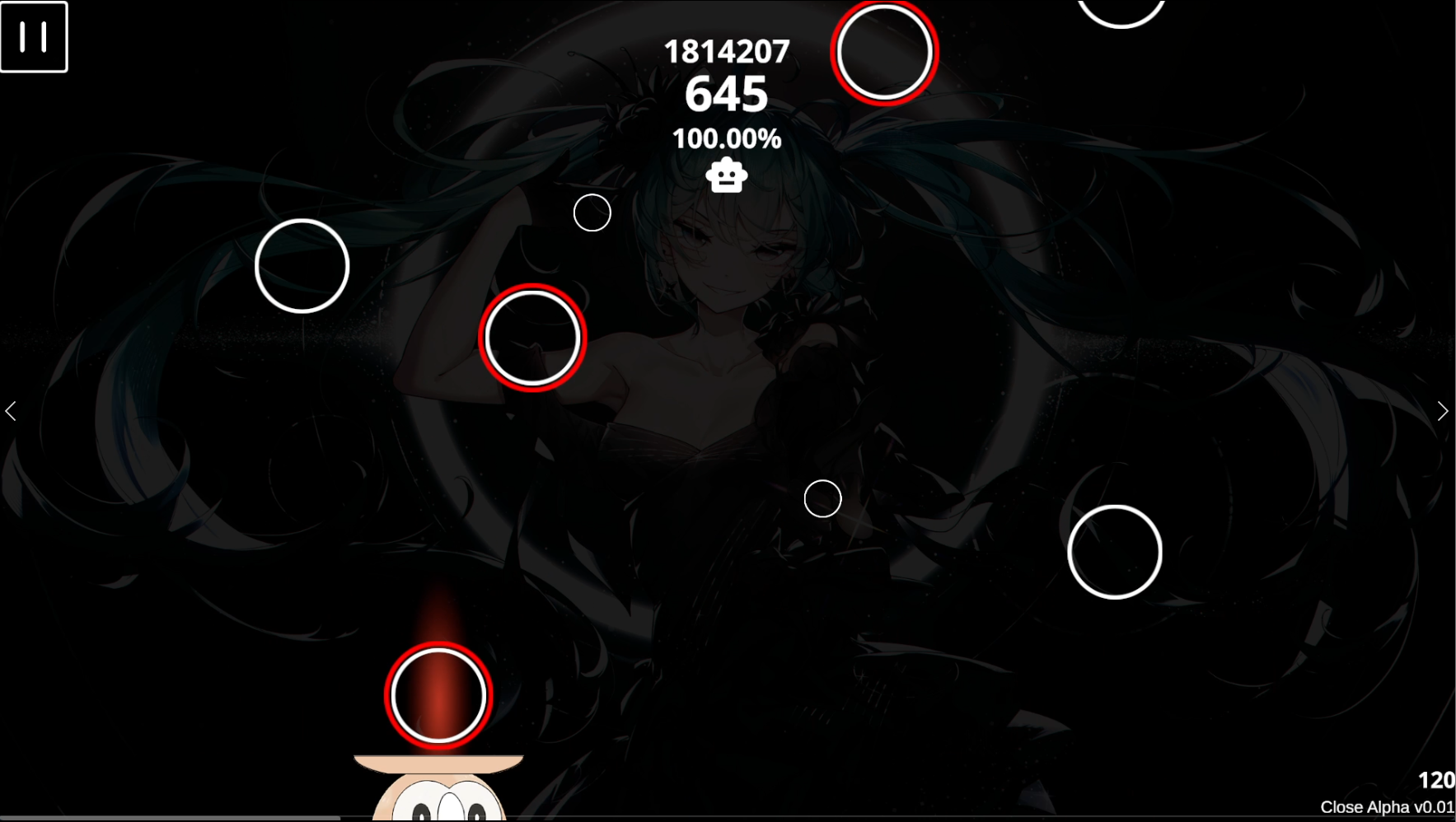
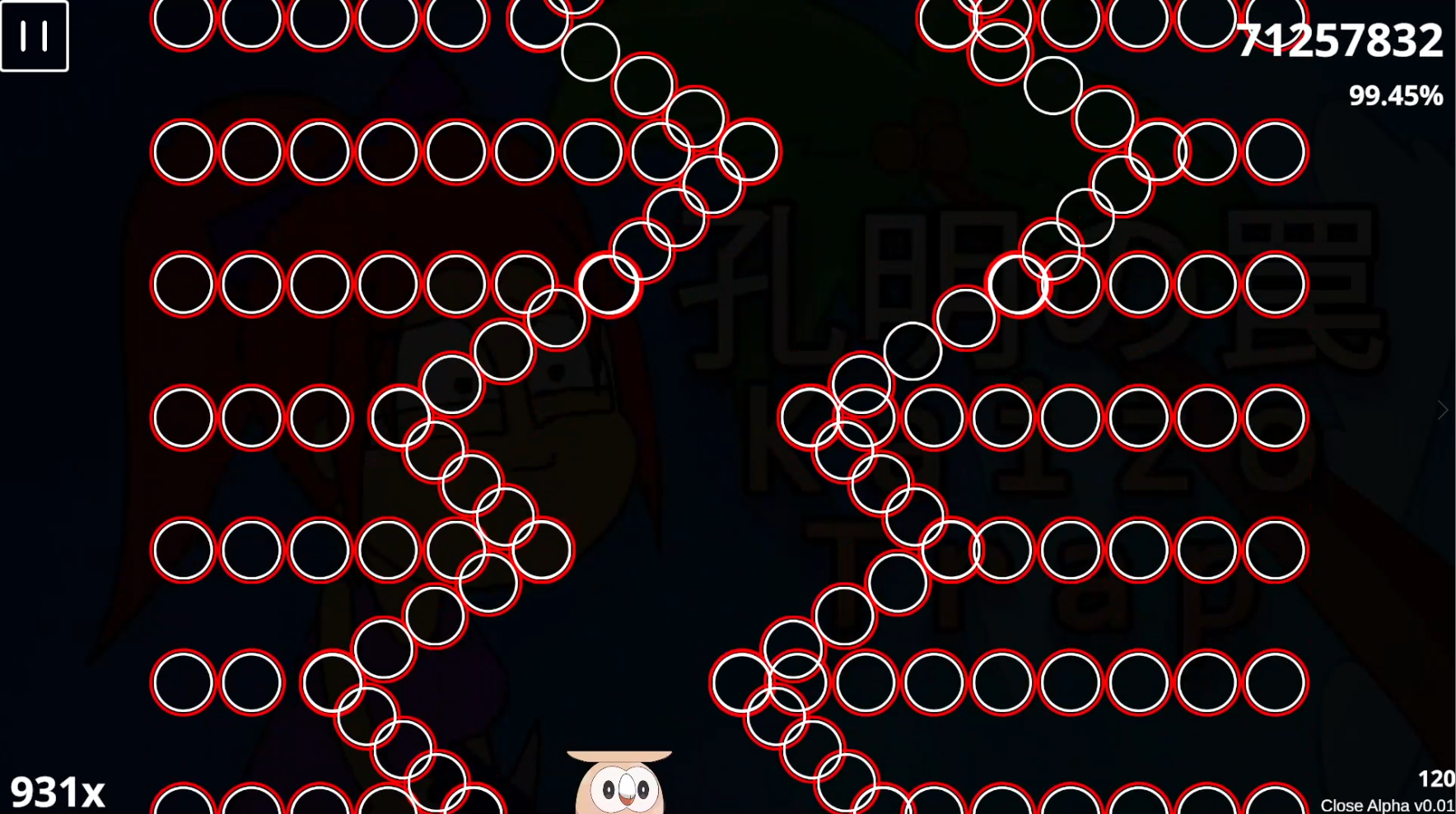
After adjusting settings, tap the Start Button at the bottom of the Mod panel to start. Tap the Robot Button for AUTO demonstration.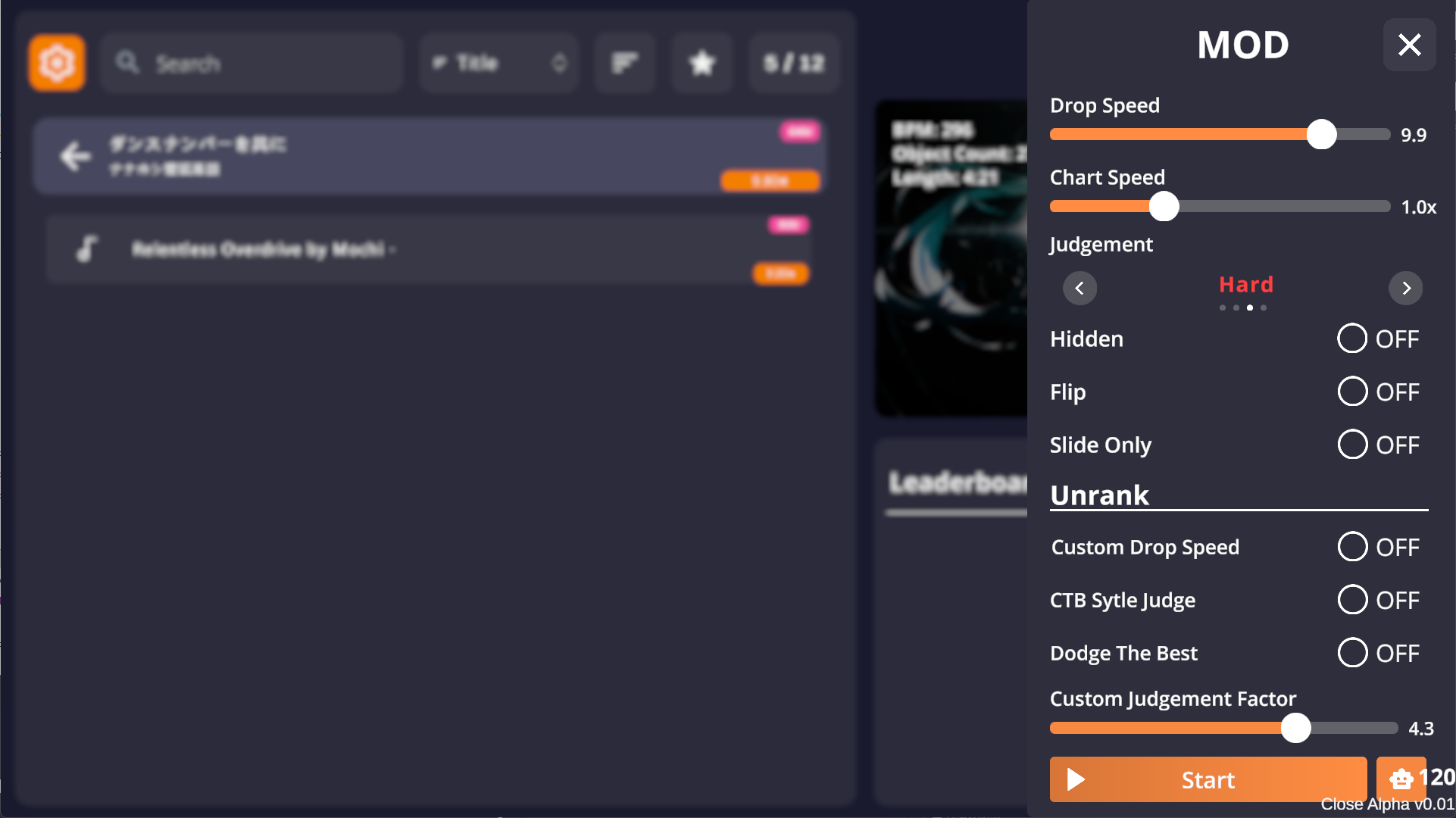
Screenshots